
IPTV Smarters Pro Firestick Setup: Full 2026 Guide

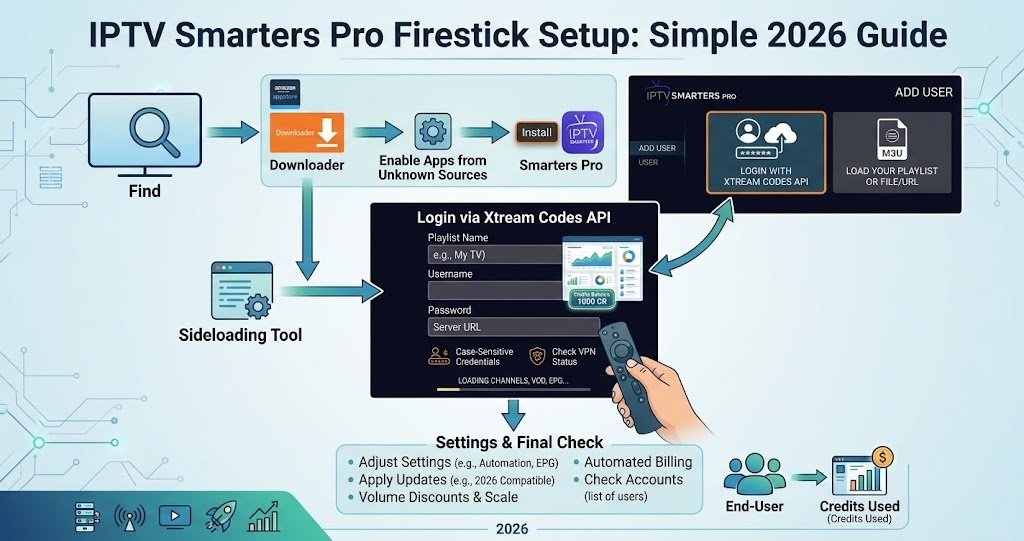
IPTV Smarters Pro Firestick setup means switching on apps from unknown sources, sideloading the APK through the Downloader app, then logging in with either an Xtream Codes API connection or an M3U playlist URL. None of that takes long once you know the order to do it in, and you don’t need any technical background to get through it. What trips people up isn’t the app itself, it’s usually a missed permission or a login detail typed slightly wrong. This guide walks through the whole process in order, plus what to do when a step doesn’t go the way it should.
What Your Firestick Needs Before You Start
A few things are worth checking before you open Downloader. Your Firestick needs a stable internet connection, ideally on the 5GHz band if your router supports it, since IPTV playback is more sensitive to network dips than ordinary streaming apps. It also needs free storage. Firesticks with only 8GB built in can fill up fast once a few apps and their cached data are on there, and a nearly full device is one of the more common reasons a sideload fails partway through.
You’ll also want your IPTV subscription details ready before you start the app itself. Most services hand these over as either an Xtream Codes login (a server address, username and password) or a single M3U playlist URL. Having this written down somewhere means you’re not hunting for it halfway through setup, which is when most people make a typing mistake.
Turning On Apps From Unknown Sources
IPTV Smarters Pro isn’t listed in the Amazon Appstore, so your Firestick needs permission to install apps from outside it. From the home screen, go to Settings, then My Fire TV (this may show as Device & Software on newer Fire TV models), then Developer Options. If Developer Options isn’t visible, open About instead, highlight your device name, and press the select button on your remote several times in a row until a message confirms developer mode is active. Once you’re in Developer Options, turn Apps from Unknown Sources on. You’ll get a warning about installing apps from sources other than the Appstore. That’s expected. Confirm it and move on.
Installing Downloader
Downloader is the tool that actually fetches the IPTV Smarters Pro file from the internet and installs it. Search for “Downloader” from the Firestick home screen’s search icon, select it from the results, and install it like any other Appstore app. Open it once installed and dismiss any onboarding prompts it shows on first launch.
IPTV Smarters Pro Firestick Setup: Sideloading the App
This is the part that actually gets the app onto your device. In Downloader, select the URL field on the right (make sure Home is selected in the left menu first), and enter the developer’s official download address for IPTV Smarters Pro. Press Go and let the file download fully before doing anything else. Once it finishes, a prompt appears asking whether to install. Select Install, wait for it to complete, then choose Done rather than Open. After that, Downloader will ask if you want to delete the installer file. Say yes, and confirm a second time when it asks again. Deleting it doesn’t remove the app itself, it just clears the leftover installer, which is worth doing given how limited Firestick storage usually is.
At this point IPTV Smarters Pro should sit on your Firestick home screen or in your apps list. If it’s not immediately visible, check the apps row rather than assuming the install failed.
Adding Your Subscription: Xtream Codes or M3U
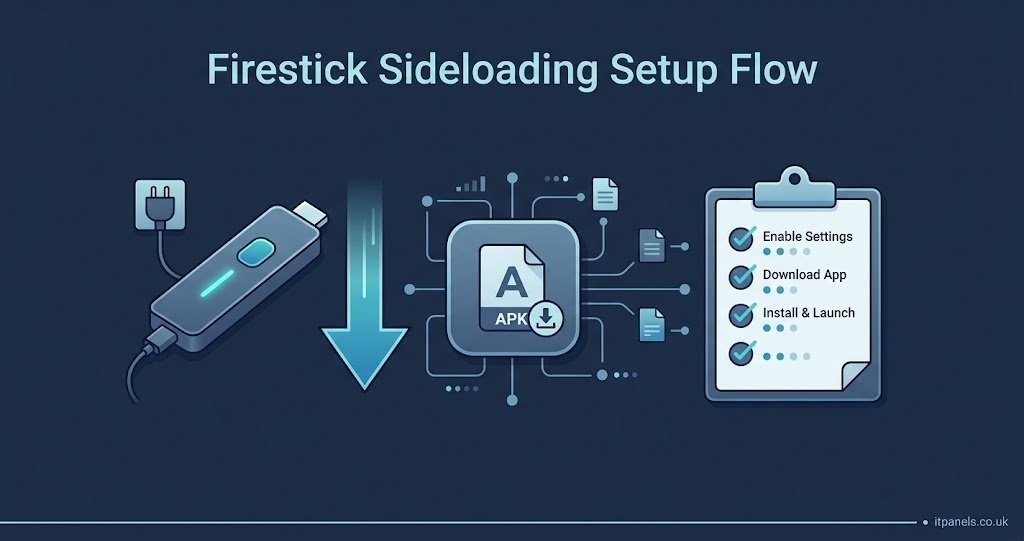
Open the app and you’ll be asked how you want to load your subscription. Most services offer one of two methods.
| Login method | What you enter | Typical use case |
|---|---|---|
| Xtream Codes API | Server URL, username, password | Services that also support EPG and categories through the panel |
| M3U URL | A single playlist link | Simpler setups or services that only issue a link |
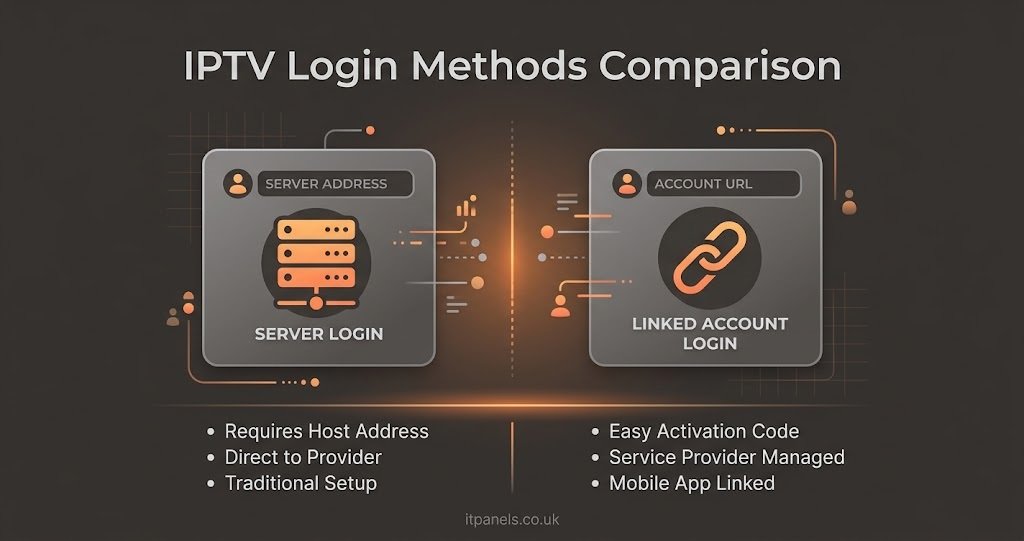
Xtream Codes logins tend to load channel categories and programme guide data more reliably, since the app is pulling structured information directly from the panel rather than parsing a flat playlist file. M3U links work fine too, but the app has less structure to work with, so guide data and grouping can be patchier depending on how the playlist was built. If you’re deciding between the two for your own reseller setup rather than as a subscriber, IPTV M3U Link vs Xtream Code goes into which one suits different situations in more depth.
Type the details exactly as they were given to you. Server URLs are case sensitive and a stray space at the end of a pasted username is a surprisingly common reason a login fails on the first attempt.
Pro tip: Give the app a name you’ll recognise if you ever add a second subscription later, rather than leaving it as the default. It saves confusion down the line.
Getting Fewer Buffering Problems
Once you’re logged in and channels are loading, a few adjustments make playback noticeably smoother. In the app’s settings, there’s usually a buffering size option. Raising it slightly gives the player more of a cushion before it needs the next chunk of data, which helps on connections that dip occasionally rather than being consistently slow. It does mean a longer wait when you first switch channels, so it’s a trade-off rather than a free upgrade.
Hardware decoding, where available, tends to reduce stuttering compared with software decoding, since it lets the Firestick’s chip handle the heavy lifting instead of relying purely on the app. Not every Firestick model supports it equally well, so it’s worth testing with it on and off to see which plays more smoothly on your specific device.
Pro tip: If your Firestick is more than a couple of years old, restart it every so often rather than leaving it running for weeks at a time. Cached data builds up and can slow channel switching more than people expect.
When Setup Doesn’t Go to Plan
A handful of issues account for most setup problems.
- If the Downloader install fails or shows a parsing error, it’s almost always low storage or a partially downloaded file. Clear some space by removing unused apps, then restart the download from scratch.
- If Apps from Unknown Sources reverts to off after a firmware update, that’s a known quirk on some Fire TV software versions. Just turn it back on and reinstall if needed.
- If login fails immediately, double check for extra spaces, incorrect capitalisation, or a server address that’s missing “http://” or “https://” at the start.
- If channels load but picture quality is poor or programme guide data is missing entirely, that points to a problem with the subscription itself rather than the app, and it’s worth checking with whoever issued the playlist. IPTV EPG Not Working covers the more common guide-data faults if that’s specifically what’s missing.
- If the app closes unexpectedly during playback, clearing the app’s cache from Firestick’s application settings usually resolves it faster than a full reinstall.
None of these fixes require reinstalling the whole app. Working through them in order, rather than jumping straight to a factory reset, saves a lot of wasted time.
If You Don’t Have a Subscription Yet
IPTV Smarters Pro is only a player. It doesn’t come with any content built in, so none of the steps above will show channels unless there’s a working subscription behind them. If you’re setting this up ahead of choosing a service, it’s worth comparing what’s actually included in different plans before committing, which is covered on the UK IPTV subscription plans page.
Frequently Asked Questions
Does IPTV Smarters Pro work on every Firestick model?
It runs on the standard Fire TV Stick, Fire TV Stick Lite, Fire TV Stick 4K, Fire TV Stick 4K Max, and Fire TV Cube. Older, lower-memory models may run slightly slower when switching channels, but the setup process is identical across all of them.
Why isn’t the app showing up after I installed it?
Check your full apps list rather than just the home row. Newly sideloaded apps don’t always appear on the front screen automatically, and you may need to move it there manually.
Can I use the same subscription on more than one device at once?
That depends entirely on the terms of your subscription, not on IPTV Smarters Pro itself. Some services allow one active stream per login, others allow more. Check with your IPTV reseller panel provider rather than assuming.
Do I need to reinstall the app if my Firestick updates?
Usually not. Firmware updates occasionally reset the Unknown Sources permission, but the app itself typically survives an update intact.
Is sideloading an app like this against Amazon’s rules?
Sideloading is a standard, supported feature of Fire TV devices and isn’t something Amazon blocks or penalises. What matters for legality is the content and service you connect the app to, not the act of installing the player.
Getting IPTV Smarters Pro running on a Firestick comes down to three things in the right order: permissions, the sideload itself, and an accurate login. Most setup problems trace back to one of those three steps rather than anything wrong with the app. Once IPTV Smarters Pro Firestick setup is complete and channels are loading properly, the buffering adjustments covered above are worth a few minutes if playback isn’t quite as smooth as you’d like. If something still isn’t working after checking the common fixes here, the issue is more likely sitting with the subscription than the player.
Firestick Setup Checklist
- Confirm free storage before starting the sideload
- Turn on Apps from Unknown Sources in Developer Options
- Install Downloader from the Appstore
- Download and install the IPTV Smarters Pro APK, then delete the installer file
- Have your Xtream Codes or M3U details written down before opening the app
- Test channel switching and picture quality before relying on it daily
- Adjust buffering size if playback stutters on your connection

[…] customers are reporting the same feed. Running that kind of support process is far easier when your IPTV reseller panel lets you see line status and active connections for the account in question rather than […]