
IPTV Buffering on Firestick: 12 Fixes That Actually Help

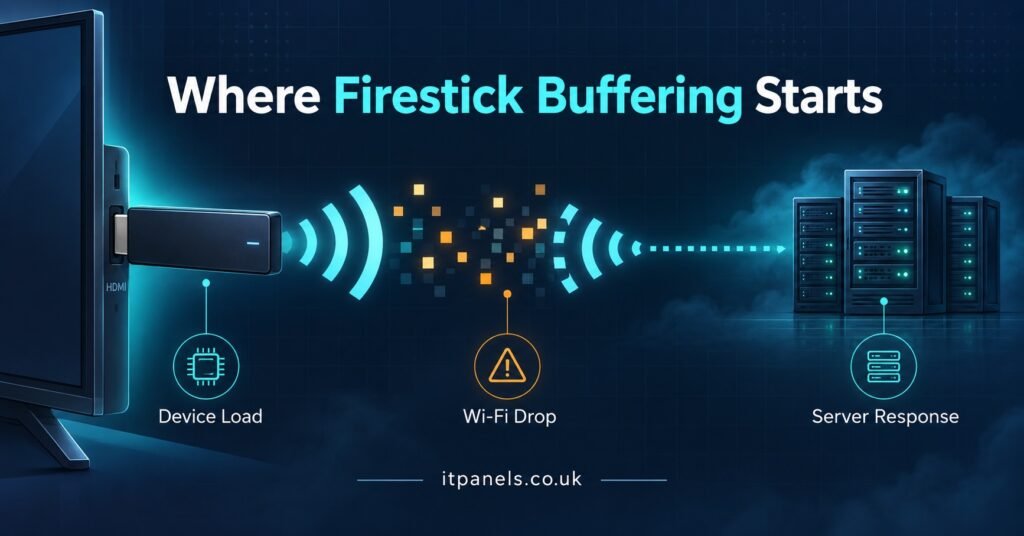
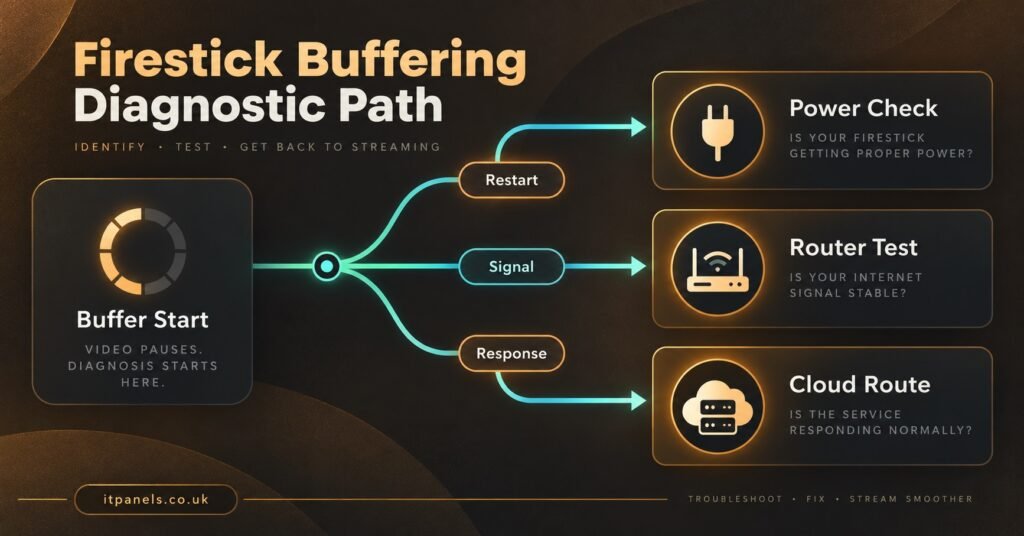
IPTV Buffering on Firestick almost always traces back to one of three places: the stick itself, the network feeding it, or the server your subscription connects to. Nothing you change in the player app will help if the fault sits in one of the other two, which is why so many people cycle through settings for an hour and end up exactly where they started. The twelve fixes below are ordered by where the problem lives, starting with the ones you can test in under a minute.
Where IPTV Buffering on Firestick Actually Comes From
A Firestick is a small, low powered computer running a stream decoder over a wireless link. Buffering happens when the data arriving at the stick falls behind the rate at which the player needs to draw frames. That gap can open up because the network is slow, because the network is unstable, because the stick cannot decode fast enough, or because the server is struggling to send.
Before touching any setting, run a quick three way test. Play the same channel on a phone using mobile data. Then play a different channel on the Firestick. Then play a large video file from any other app on the Firestick.
If the phone streams cleanly on mobile data but the stick stutters, the fault is local: your stick or your home network. If every channel stutters on the stick but other apps play fine, look at the player and its settings. If one channel stutters and the rest are perfect, that is a source feed problem and no amount of local tinkering will change it.
That distinction saves an enormous amount of wasted effort.
Fixes 1 to 4: The Stick Itself
1. Use the supplied mains adaptor, never the TV’s USB port
This is the single most common cause of a Firestick that behaves strangely under load, and it gets overlooked constantly. A USB port on a television usually supplies less current than the stick’s own plug. Under light use the stick copes. The moment it has to hold a Wi-Fi connection and decode a high bitrate stream at the same time, it browns out, throttles, or reboots mid stream.
Plug the stick into the wall using the adaptor that came in the box. If the HDMI port is awkward to reach, use the supplied extender rather than moving to USB power.
2. Clear the player’s cache and free up storage
Fire TV sticks ship with modest internal storage, and a player app that has been running for months builds up cached guide data, thumbnails and logs. Once the drive gets tight, everything slows down, including the write operations the player uses to fill its buffer.
Go to Settings, then Applications, then Manage Installed Applications, select your player and clear the cache. Leave the data alone unless you are prepared to log in again. While you are in there, uninstall anything you have not opened in the last few months.
Pro tip: Clear the cache before a big evening of viewing rather than during it. Some players rebuild their channel list from scratch afterwards, which takes a few minutes you will not want to spend mid stream.
3. Restart properly and stop the home screen stealing bandwidth
Selecting restart from the menu is not the same as a cold boot. Pull the power for around thirty seconds, then plug it back in. That clears memory the software restart leaves behind.
The Fire TV home screen also plays autoplaying video and audio previews for featured content, which consume bandwidth and memory in the background. Turn those off under Settings, Preferences, Featured Content. On a busy line, that alone can be the difference between a smooth stream and a stuttering one.
4. Check which operating system your stick runs
This matters more in 2026 than it used to. Amazon confirmed on its developer pages that starting with the Fire TV Stick 4K Select, all future Fire TV Sticks run Vega OS rather than the Android based Fire OS. The Fire TV Stick 4K Select released in October 2025 and the Fire TV Stick HD launched in April 2026 both run Vega OS, and neither supports sideloading.
| Stick model | Operating system | What it means for players |
|---|---|---|
| Fire TV Stick 4K, 4K Plus, 4K Max | Fire OS, Android based | Sideloaded player apps install as normal |
| Fire TV Stick 4K Select | Vega OS, Linux based | Appstore players only |
| Fire TV Stick HD sold from 2026 | Vega OS, Linux based | Appstore players only |
If you are on a Vega OS stick, your choice of player is limited to what the Appstore offers, and some of the buffer tuning options discussed further down simply will not be available to you. Your credentials still work the same way, since authentication happens server side. Only the app choice changes. For anyone setting up on a Fire OS device, the full Firestick player setup walkthrough covers the sideloading route step by step.
Fixes 5 to 8: The Network Between Your Router and the Stick
5. Confirm which Wi-Fi band you are actually on
Plenty of sticks quietly connect to the 2.4GHz band because it reaches further, then struggle because that band is crowded with everything else in the building. Check under Settings, Network. If your router broadcasts separate names for each band, join the 5GHz one deliberately.
The trade off is honest: 5GHz is faster but passes through walls poorly. If the stick sits two rooms away from the router, 5GHz may actually perform worse. Test both and keep whichever holds a steadier connection, not whichever reports the higher speed.
6. Reduce what else is competing for the line
Streaming is sensitive to consistency rather than raw speed. A large upload, a game console downloading a patch, or a video call running in another room can all introduce the brief gaps that show up as buffering. Peak evening hours make this worse because your neighbours are doing the same thing.
If your router supports quality of service rules, give the Firestick priority. If it does not, pausing the obvious offenders for ten minutes is a fair test of whether contention is your problem.
7. Go wired if the stick sits in a difficult spot
An Ethernet adapter for Fire TV removes wireless variability entirely. It is not glamorous and it means running a cable, but for a stick behind a wall mounted television in a house with thick walls, it usually ends the conversation. Where a cable is genuinely impossible, a powerline adapter or a mesh node placed in the same room is the next best option.
Pro tip: Before buying anything, carry the Firestick and a plug to the room your router is in and run it there for twenty minutes. If it behaves perfectly, you have proved the problem is signal reach rather than the service.
8. Test with the VPN off
If you run a VPN on the stick or at router level for privacy reasons, it adds routing distance and an encryption overhead to every packet. That is usually fine. It is occasionally the whole problem, particularly when the endpoint is congested. Turn it off for a single test stream. If the stutter disappears, try a nearer endpoint or a different protocol before concluding anything about your IPTV Panel provider.
Fixes 9 to 12: The Stream and the Service Behind It
9. Match the stream quality to the line you actually have
Many services publish the same channel at several qualities. A 4K feed demands several times the sustained throughput of a standard HD one, and on a line that only just copes, choosing the lower quality version is not a compromise, it is the correct setting. A clean HD picture beats a 4K picture that stalls every ninety seconds.
Inside the player, check the decoder setting as well. Hardware decoding uses the stick’s dedicated chip and is normally the right choice. Software decoding leans on the processor and will struggle on older or lower specified sticks.
10. Increase the buffer in the player app
Most full featured players expose a buffer size or cache setting. Raising it gives the app a larger cushion of downloaded data to draw from, which smooths over brief dips in throughput. The cost is a slightly longer wait when you change channel, and a larger memory footprint on a device that does not have much to spare.
Raise it one step at a time rather than jumping to the maximum. Pushing it too far on a stick with limited memory can cause the app to close unexpectedly, which is a worse experience than the original stutter.
11. Check how many devices are using the same credentials
Subscriptions are normally sold with a connection limit. When a second or third device logs in with the same details, the server may drop or throttle sessions, and the symptom at your end looks exactly like a network fault. Log out anywhere you are not actively watching, including any phone or tablet that may still hold a session open in the background.
If you connect using an M3U URL, be aware that the way your player authenticates affects how the server tracks your session. The differences between the two common login methods are covered in this comparison of M3U links and Xtream Codes logins.
12. Prove whether it is server side before you complain
Run the same channel through a mobile hotspot. If it stutters on a completely separate network, on a different device, at the same time of day, the fault is not in your house. That is genuinely useful information, and it turns a vague support message into something a provider can act on.
Note the channel name, the exact time, the device, and whether other channels behaved the same way. Support teams can check server load and source feeds against that. They cannot do anything with “it keeps buffering”.
What You Cannot Fix from the Firestick
Some causes sit entirely outside your control, and it is worth being honest about them rather than working through settings for another hour.
Server capacity at peak times is the obvious one. If a service oversells its infrastructure, evening performance degrades no matter how good your broadband is. Source feed quality is another: if the upstream feed for a particular channel is poor, every customer on that service sees the same stutter on that channel and nowhere else. Your ISP’s peering arrangements can also throttle throughput to specific networks during busy hours, which no local setting will correct.
IPTV is a delivery technology, and the reliability you get depends on the infrastructure and the distribution rights behind whatever service you subscribe to. Persistent buffering that survives all twelve fixes above, on multiple networks, over several days, is a provider problem rather than a Firestick problem.
Pro tip: Keep a short note of dates, times and channels when buffering happens. A pattern that shows up only between 8pm and 10pm points at capacity. A pattern spread randomly through the day points at your local network.
If You Are the One Answering the Support Message
Resellers get this ticket more than any other, and answering it well is mostly about triage. Ask three questions before offering any fix: is it one channel or all of them, is it one device or every device in the house, and does it happen at a particular time. Those answers separate a power supply issue from a capacity issue in about two exchanges.
Keep a short written reply saved for the power adaptor and connection limit checks, since between them they resolve a large share of reports. Anything that survives your standard checks should be logged with the channel and timestamp so you can spot whether several customers are reporting the same feed. Running that kind of support process is far easier when your IPTV reseller panel lets you see line status and active connections for the account in question rather than guessing.
Guide data problems get reported as buffering surprisingly often too, since a stalled listing looks like a frozen stream to most customers. If the picture plays but the guide is empty or wrong, the EPG troubleshooting guide is the better starting point.
Common Questions
Does a Firestick have enough power for 4K streams?
The 4K models handle 4K decoding fine when properly powered and connected. The bottleneck is almost never the chip. It is the power supply, the wireless link, or the sustained bandwidth available to it.
Why does buffering only start after twenty or thirty minutes?
That pattern usually points at heat or memory. The stick warms up in a confined space behind the television and throttles, or the player’s memory use climbs until the device starts struggling. Improve airflow with the HDMI extender and restart the app between long sessions.
Will a faster broadband package stop the buffering?
Only if your current line genuinely cannot sustain the stream. If a mobile hotspot plays the same channel cleanly, extra speed will not help, because throughput was never the limiting factor.
Is it worth reinstalling the player app?
It is a reasonable step once cache clearing has failed, particularly if the app has updated recently. Have your login details to hand first, since a reinstall wipes them.
My newer Firestick will not let me install the player I used before. Why?
Vega OS devices cannot sideload apps, so anything outside the Appstore is unavailable on those models. Your subscription still works, but you will need a player that the Appstore carries. Mobility Arena
Can the remote or Bluetooth interfere with streaming?
Rarely, though a room full of Bluetooth devices can add noise on the 2.4GHz band. If you are stuck on 2.4GHz, that is one more reason to move the stick to 5GHz where the signal allows it.
The Practical Takeaway
IPTV Buffering on Firestick is worth approaching as a location problem rather than a settings problem. Work out whether the fault sits in the stick, the network or the service, then apply only the fixes that belong to that layer. In practice, the mains adaptor, the Wi-Fi band and the connection limit account for a large share of cases, and all three take minutes to check.
If you have worked through everything here and the stutter persists across two separate networks at different times of day, stop adjusting your setup and take the evidence to your IPTV Reseller panel provider. That is the point where the problem stops being yours to solve.

[…] for most repeat onboarding failures, and they tend to recur regardless of how experienced the IPTV panel reseller […]